
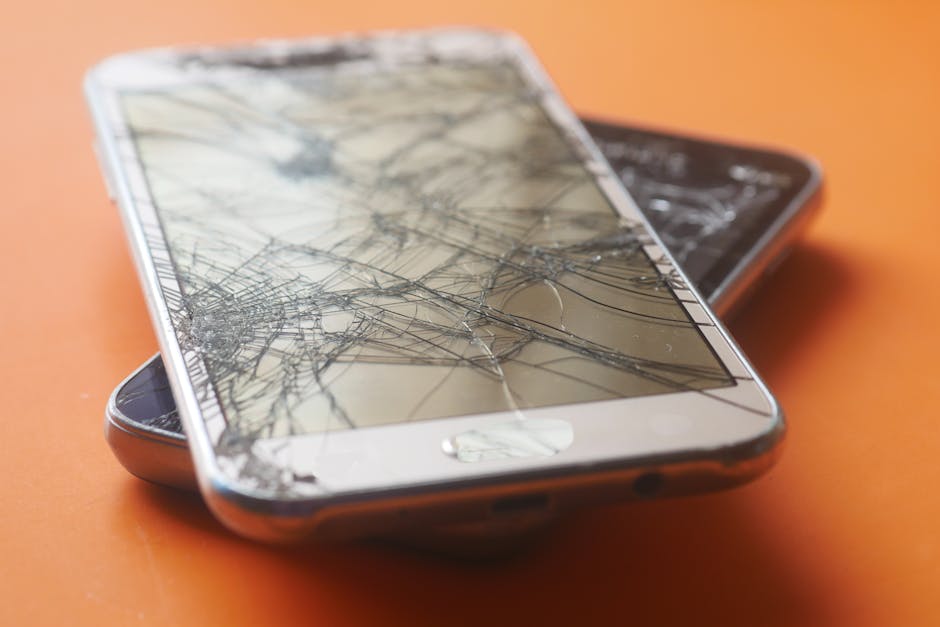
An iPhone 14 Pro Max that registers taps you didn't make, or fails Face ID without explanation, has a small set of likely causes. Most are software; some are hardware; one is environmental. Three years on this device puts it right in the window where these issues start showing up — out of AppleCare, into independent repair territory.
What's actually happening
Ghost touch — the screen registering taps you didn't make — on the 14 Pro Max is usually one of three things:
- A screen protector with bad adhesion creating false-contact zones near the edges. The protector lifts slightly; the gap behaves like a finger to the digitizer.
- A stale touch-driver state after an iOS update or a bad force-restart. Software, not hardware. Often clears itself in a day; a restart accelerates the fix.
- A partially-failed display IC — the hardware case. On the 14 Pro this shows up after the device has had a hard fall, sustained heat damage (left in a hot car), or a failed third-party screen repair.
Face ID issues — failing to recognize, persistent "Move iPhone Lower" prompts, or full failure — are usually not the TrueDepth camera array itself. They're usually one of two things:
- A flex cable disturbance behind the screen. The cable connecting the camera array to the logic board sits behind the display and is one of the first things to be damaged by a screen repair done elsewhere with the wrong tools. Face ID issues that started AFTER a third-party screen repair are almost always this.
- A software state issue. iOS occasionally gets into a state where Face ID's enrolled data and the live camera feed don't align. A reset-and-re-enroll fixes it.
Quick checks before bringing it in
Run these in order. Each is under a minute.
- Force-restart. Volume up, then volume down, then hold the side button until the Apple logo appears (about 10 seconds in). Clears stale touch and Face ID driver state. Resolves about 30% of cases on its own.
- Remove any screen protector. Test for ghost touch without it for 10 minutes. If the issue stops, the protector was the cause — replace it or skip protectors entirely on this phone.
- Reset and re-enroll Face ID. Settings → Face ID & Passcode → Reset Face ID, then Set Up Face ID again. Solves most software-side Face ID failures.
- Reset All Settings. Settings → General → Transfer or Reset → Reset → Reset All Settings. This is non-destructive — it keeps your data and apps but resets the per-app, network, and accessibility flags that occasionally interact badly with the touch driver.
- Test in a normal-temperature environment. OLED screens behave differently in cold; ghost touch sometimes appears below 50°F and clears once the phone warms up. Not a fix, but useful for narrowing the cause.
When to bring it in
- Ghost touch persists after restart, with no screen protector, in a normal environment.
- Face ID fails after you've reset enrollment.
- You had a recent third-party screen repair and Face ID stopped working after — the flex cable is suspect.
- The screen has visible defects (faint vertical lines, off-color regions, dim spots) along with the ghost touch.
If the diagnosis turns out to be the Face ID flex cable rather than the screen IC, we'll quote that separately. The flex cable repair goes through the screen but uses a different part. Most ghost touch on the 14 Pro Max is the screen, which is why the callout above is the most common quote.
If we open the device and find the issue is purely software (or a damaged third-party screen from a prior repair), we'll tell you before doing replacement work.