
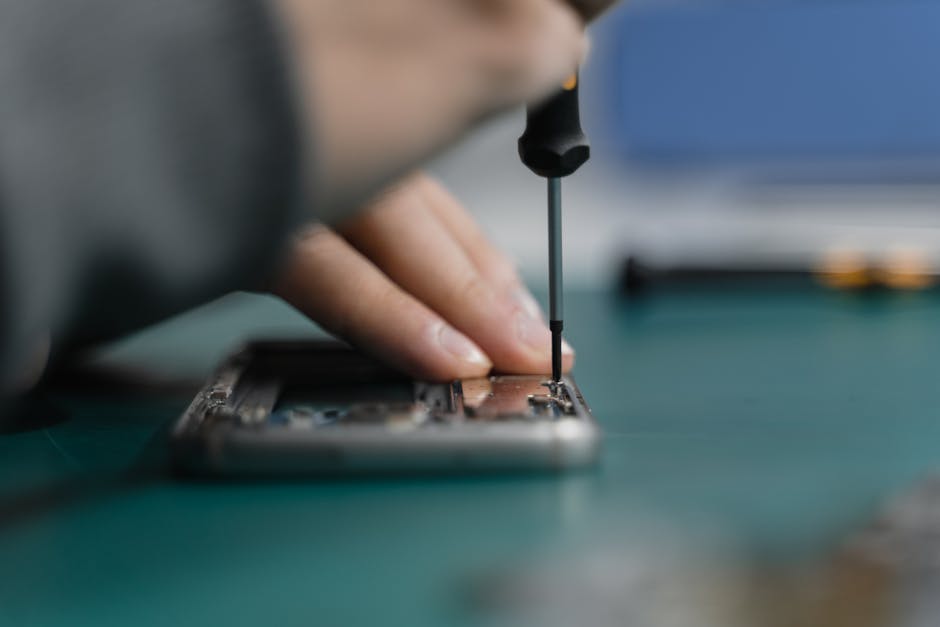
A 2.5-year-old iPhone 15 Pro Max with a noticeably worse battery is right on schedule. Telling expected aging from early failure comes down to two numbers — Maximum Capacity and idle drain — and a quick look at the back glass.
What's actually happening
The iPhone 15 Pro Max launched September 2023 with the A17 Pro chip, which runs slightly hotter than the A16 in normal use. Heat ages batteries. By early 2026, most 15 Pro Max batteries are in the 82–88% Maximum Capacity range — noticeable but normal.
Three things are NOT what's wrong, despite getting blamed:
- iOS bugs. Major iOS updates always get blamed for battery drain. They're rarely the actual cause. The real cause is usually background-app-refresh churn that resets after install and runs hot for a day or two before settling.
- The battery being "broken". Lithium-ion doesn't suddenly fail at 2.5 years — it gradually degrades. A sudden drop from "great" to "terrible" overnight is almost always a specific app misbehaving, not the battery.
- Heat damage. Unless the phone was left in a hot car for hours, ambient heat doesn't suddenly destroy a battery.
The legitimate causes:
- Maximum Capacity has dropped below 80% — now you're below the threshold where replacement actually helps.
- A rogue app stuck in a background loop is consuming the battery while you're not watching.
- A swollen battery, which you can sometimes feel as the back glass starting to bulge slightly. This is rare but worth checking; it's the case where you should bring it in immediately rather than later.
Quick checks before bringing it in
- Settings → Battery → Battery Health & Charging. Note Maximum Capacity. Above 85%: probably not the battery. Below 80%: probably is the battery.
- Settings → Battery → scroll down to per-app usage. Sort by "Last 10 Days." Anything over 30% is suspicious — usually a misbehaving app, not the system.
- Force-quit every app and watch idle drain for an hour. Lock the phone, leave it alone, check after 60 minutes. Lose more than 5% sitting idle? A background process is misbehaving. Lose 1–2%? Normal idle, battery is fine.
- Look at the back glass under good light. Subtle bulging or a crack appearing without a fall = swollen battery. Don't wait on this — bring it in.
When to bring it in
- Maximum Capacity is below 80%. Replacement makes sense.
- Maximum Capacity is fine but a specific app shows >30% usage and you've already deleted and reinstalled it without improvement. Sometimes the issue is hardware-adjacent and worth a diagnostic.
- Any sign of physical battery swelling. This is urgent — a swelling battery can damage the screen, frame, or camera if left long enough.
If the diagnosis is "the battery is fine and a specific app is the cause," we'll tell you and not charge for a replacement you don't need. We'd rather you not pay for a fix that doesn't fix the actual problem. Walk-ins welcome at both locations.